
Moving to a new phone can involve both your app account and a fresh device connection. Keep the old phone available until the replacement has been checked with the device unworn. For app-controlled chastity devices, confirm the manufacturer’s transfer procedure before deleting an account, removing a binding or discarding the original phone.
Record Your Account and Device Details
Write down the exact device model, the account email or username used for the official app, the app name and its verified store listing, and any serial number printed on the device or supplied paperwork. Keep the order reference privately. Do not publish a screenshot containing an account identifier, address, location, verification code or key. A photo of an unworn device label can help support identify a revision if the model name alone is ambiguous.
Distinguish three records: the cloud account signs you into a service; a Bluetooth pairing connects one phone locally; a device binding associates hardware with an account or phone. Moving to a new handset may affect one without affecting the others. Do not create a second account simply because the new phone cannot see the device on its first scan.
Keep the Old Phone Available During Setup
Keep the old handset charged and signed in until the maker’s current migration procedure is clear. If the app offers a documented transfer or unbind action, read its consequences before using it. Deleting the old app, resetting the old phone or selling it too early can remove access to information needed to troubleshoot the new setup. Back up ordinary phone data by your platform’s instructions, but do not assume an operating-system backup transfers a hardware binding.
Carry out setup with the device unworn and its normal physical release method available. For a key box, keep legitimate access to the box and any required key outside the experiment. For a cage, keep the supplied physical key or manufacturer-supported release path at hand. A migration test is never a reason to make access dependent on the new phone alone.
Check Whether Pairing or Binding Must Change
Read the exact model’s manual or current app help for the order of operations. Some devices use a nearby Bluetooth connection for initial pairing and a separate account-level sharing or binding step. Others describe only one connection. Record the words the app uses instead of assuming “pair,” “bind” and “log in” mean the same action. Confirm whether the old phone must be present and whether a partner’s access is affected.
If instructions are absent, stop before factory-resetting hardware or removing the old account. Send support the model, app version, phone operating-system versions and a description of the screen. Ask whether migration retains existing timers, permissions and shared access. Do not use another QIUI model’s transfer instructions as a substitute.
Verify Access on the New Phone
After following documented steps, check that the new phone shows the correct model and device identifier. With the device unworn, confirm only ordinary functions the maker explicitly recommends for setup. Check account sign-in, nearby discovery and whether the displayed status refreshes. Then verify that the physical release route still works independently of the phone. A responsive screen alone does not prove a future unlock will occur.
Note the date, app and operating-system versions, and whether the old phone still connects. If the status differs between phones, record both displays rather than repeatedly changing a timer or deleting a binding. The smart-device beginner guide explains the basic setup; describe any discrepancy to support without sharing secrets.
Compare How Three Devices Separate App and Physical Access
Metal KeyPod is a timed, app-controlled physical key box. ThrillCage has app-managed electronic functions but a physical key for release. MetalShake offers app locking and vibration with its own hardware arrangement. These are not interchangeable migration systems. Compare each product’s manual for account recovery, local pairing, shared-control handling and independent physical access. If a listing is silent on transfer, mark the answer unknown.
| Record | Old phone | New phone |
|---|---|---|
| Official app and version | Fill in | Fill in |
| Account signed in | Yes/no | Yes/no |
| Device shown and identifier | Fill in | Fill in |
| Physical access checked | Record the separate method | |
QIUI Metal KeyPod App-Controlled Key Lock Box with Timer
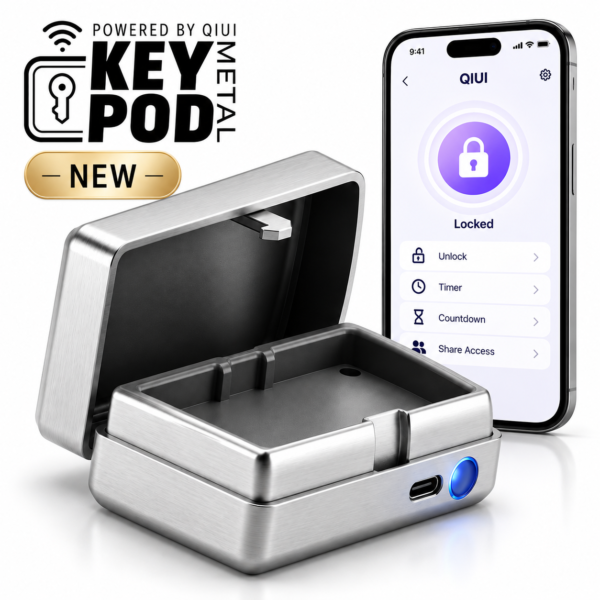
Metal KeyPod stores a physical key behind app and timer controls. Its account transfer and access procedure must be confirmed for the exact model before changing phones. See the product details and confirm the selected option before ordering.
QIUI ThrillCage App-Controlled E-Stim Chastity Cage
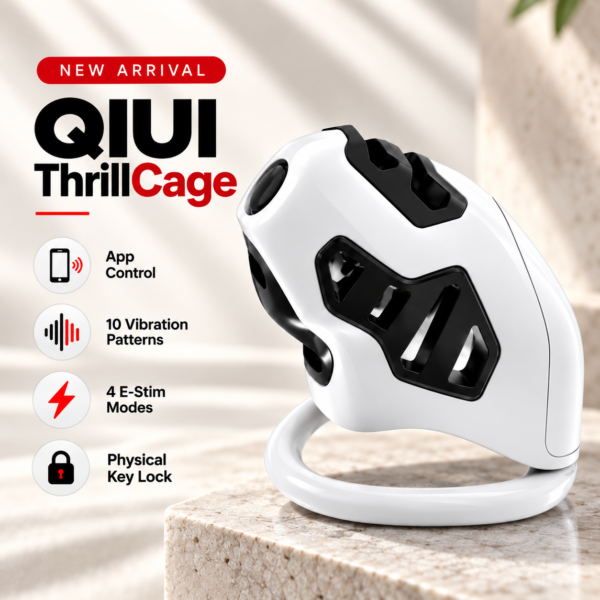
ThrillCage combines app-controlled functions with a physical key. A phone migration should never be treated as a replacement for that local access method. See the product details and confirm the selected option before ordering.
QIUI CAGINK MetalShake App-Controlled Metal Vibrating Chastity Cage

MetalShake is another app-linked cage with vibration. Confirm its own binding and recovery instructions rather than borrowing KeyPod or ThrillCage steps. See the product details and confirm the selected option before ordering.
Keep the transfer reversible until both account visibility and independent access have been checked. When the manufacturer does not document a step, request guidance before changing a binding.