
A chastity app can request Bluetooth, nearby-device, location or notification access for different reasons. Review each request against the function you are trying to use, rather than granting everything at once. With app-controlled chastity devices, permission names and requirements vary by phone software and app version, so a short permissions check can prevent avoidable connection problems.
Bluetooth Access and Device Discovery
A phone must be allowed to use the relevant local wireless feature before an app can discover a nearby device. Android may present a “Nearby devices” permission for Bluetooth scanning and connection; the exact prompt depends on Android and app versions. iPhone presents its own Bluetooth access controls under app privacy settings. Grant only the permission the official app requests for a function you intend to use, then retry a documented off-body pairing step.
Permission is one possible cause of a discovery failure, not proof of a defective device or a universal cure. First verify Bluetooth is on, the correct app is installed and the hardware is in the maker’s setup state. If it still fails, record the prompt text and operating-system version for support. The connection checklist separates these checks from release concerns.
QIUI Metal KeyPod App-Controlled Key Lock Box with Timer
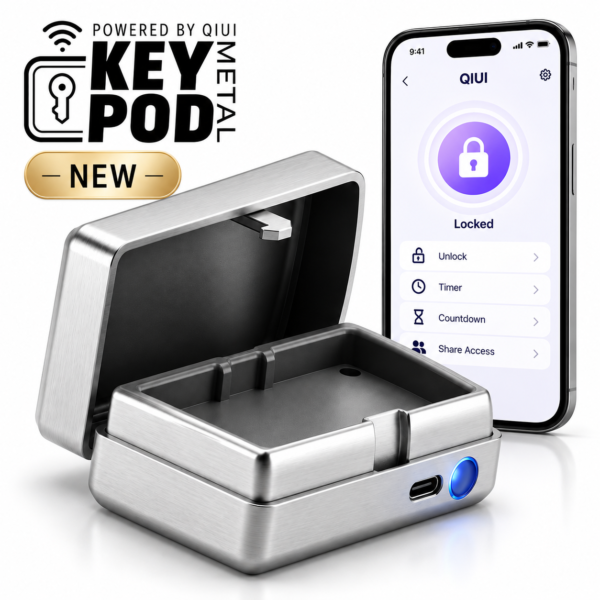
Metal KeyPod is a timed key box; check permissions tied to its app and timer functions, while retaining physical-key access independently of the phone. See the product details and confirm the selected option before ordering.
When Location Permission Appears
Do not accept a blanket claim that every Bluetooth device requires continuous precise location. On newer Android versions, Nearby devices is distinct from location access, although an older app or a location-based feature may ask for additional permission. A Bluetooth scan, a branded location feature and information visible to a remote partner are three separate matters. The presence of a prompt alone does not tell you what the company stores or shares.
Read the current app permission explanation and privacy notice. If a feature explicitly requires location, decide whether that feature is worth enabling; use the least access supported by the app and operating system. If the app will not work without a permission that the maker cannot explain, ask support what function depends on it rather than switching on every location setting.
QIUI CAGINK Pro Cellmate 3 App-Controlled Smart Chastity Cage
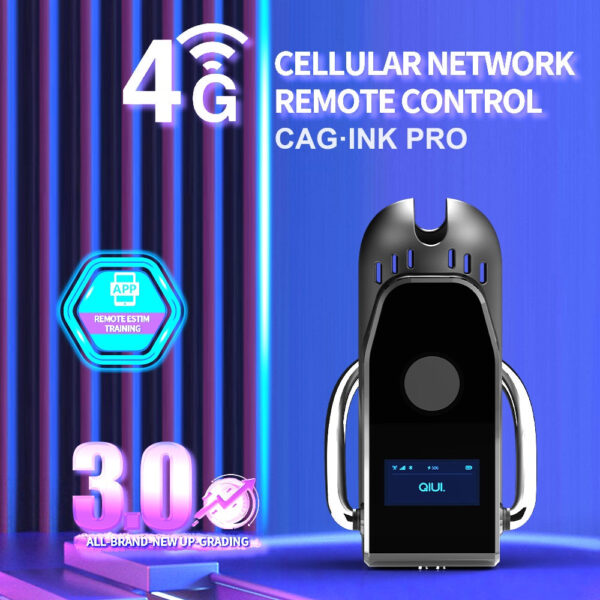
Cellmate 3 is an app-controlled smart cage. Review the current companion app and its documented discovery permissions for this exact generation. See the product details and confirm the selected option before ordering.
Notifications and Background Access Are Separate
Notifications determine whether an app can display alerts. Background activity controls whether parts of an app continue to run while it is not open; power-management behavior differs by phone. Neither permission necessarily establishes a live connection to hardware after a screen locks. A missing alert may be a notification setting, while a stale status display may be a connection or synchronization problem.
Check the app’s documented notification needs and the operating system’s per-app settings. Avoid disabling system security, all battery protection or all privacy controls as a generic troubleshooting step. If a maker documents one required background option, change that option alone and retest with the device unworn. Revert a change that does not help and keep a record of the result.
Review Permissions Without Guessing
Make a small table before changing settings. Note the app version, operating-system version, permission name, current state, function you are trying to use and the maker’s documented reason. Android’s app information page and iPhone’s Settings allow permission review or revocation, but menu wording can change. After a change, reopen the app and repeat the same approved, unworn test once. This one-variable method makes a result interpretable.
| Permission | Needed for | Maker evidence | Test result |
|---|---|---|---|
| Bluetooth/Nearby | Local discovery? | Manual/app help | Fill in |
| Location | Specific feature? | Privacy explanation | Fill in |
| Notifications | Named alerts? | App settings | Fill in |
Keep screenshots private and conceal account or location details when asking for help. A permission can be revoked later; a previously granted permission is not a permanent requirement.
Match Privacy Settings to the Functions You Use
Metal KeyPod, Cellmate 3 and ThrillCage all have app-related controls, yet their documented functions and release arrangements differ. A timer display, partner connection and E-Stim control can demand different checks. Do not assume a prompt seen on one QIUI product applies to another hardware generation. Compare the exact app version and manual before adjusting the phone.
For a model whose privacy behavior is not documented, say “unknown” and ask support. Phone permissions describe access that the operating system grants; they do not by themselves certify a brand’s data retention or partner visibility. If privacy is a purchase criterion, request those details before selecting a device.
QIUI ThrillCage App-Controlled E-Stim Chastity Cage
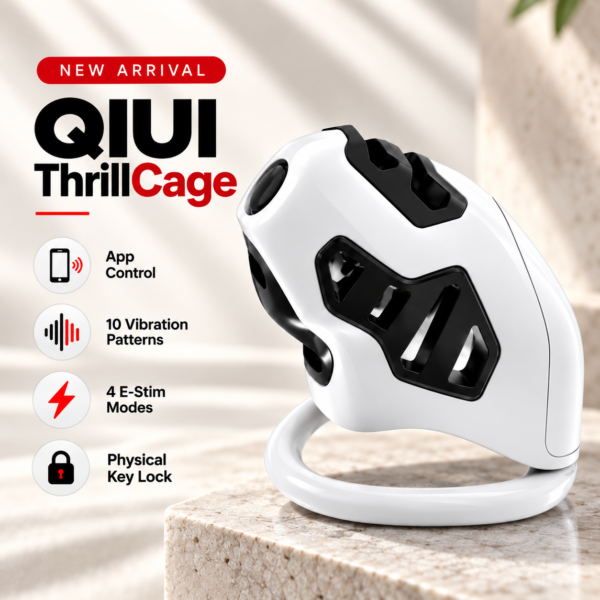
ThrillCage offers app-controlled electronic functions but a physical key for release. Permission changes should be tested off-body and never replace the key. See the product details and confirm the selected option before ordering.
Grant a permission only when its purpose is documented and relevant. Record the observed effect, then keep or revoke it according to the function and privacy tradeoff you actually want.