If the connection drops only when the screen locks, the app’s background behavior is a useful place to investigate. Compare that pattern with a normal foreground connection before changing settings. For app-controlled chastity devices, follow the manufacturer’s guidance and check the phone’s relevant power controls while the device is unworn; a screen-lock pattern does not prove a hardware fault.
Confirm Whether the Problem Follows Screen Lock
Start with an observation, not a setting change. Record the phone model, operating-system version, app version, device model and connection method. With the device unworn, note whether the app responds while the screen is on, what time the screen locks and what message appears afterward. Distinguish a lost nearby connection from a delayed status refresh or a partner-side network issue. One failed session does not establish a hardware fault.
Try the same documented action once after unlocking the phone. If the app reconnects, note how long it takes and whether it shows the expected device. Do not use an active wear session, alter a running timer or rely on the app display to judge physical release. The general connection guide covers initial setup; this check isolates the screen-lock transition.
Compare Foreground and Background Behavior
Foreground means the app is open on the screen. Background means another screen or the locked screen is in front while the app may continue limited activity. Your phone can restrict background scans, network activity or notifications, but those are different controls. Compare only the same app action, device distance and network conditions in the two states. Note whether the app must reopen to display fresh data.
Do not mistake a stale timer or cached screen for an actual change in the device’s mechanical lock. A remote partner’s view may update on a separate path. If there is no documented way to verify the hardware’s state off-body, report what the screen showed and ask the maker how status synchronization is designed to work.
Review the App’s Documented Power Settings
Look for the exact app in the phone’s battery and background-activity settings. Then compare the maker’s current instructions with the operating system’s options. Some phones offer an app-specific allowance for background operation; others may not. Change only the setting that the manufacturer or operating-system documentation connects to the affected function. Record its original value before testing so it can be restored.
Do not switch off all battery optimization, device security, permissions or privacy protections to make one app work. A broader change may cause extra battery use or expose unrelated information without solving the problem. If the vendor’s instructions do not identify a relevant option, document the failure and request support instead of experimenting through every setting.
Repeat the Check with the Device Unworn
Use the same short sequence: app open, approved command, screen lock, wait a recorded interval, unlock and check response. Keep the device unworn and its normal release route available. Change only one supported phone setting between tests, then compare. If the failure occurs only at one distance, under one power mode or after a specific time, include that detail; it is more useful than “sometimes disconnects.”
| Test | App state | Phone setting | Observed response |
|---|---|---|---|
| Baseline | Open/locked | Original | Fill in |
| One change | Open/locked | Named option | Fill in |
A successful local test does not guarantee the same result on every phone or network. Keep the outcome tied to its conditions.
Record the Result Before Comparing Control Options
Once the immediate fault is documented, compare control arrangements only if the setup no longer fits your needs. ThrillCage uses app controls and a physical key; Cellmate 3 has its own app architecture; the Blue App and Remote cage offers two documented controller options. A separate remote can change how one function is commanded, but it is not a universal fix for app disconnections or proof of electronic unlocking.
First send the log and exact model to support. Ask whether the app is expected to remain connected when locked, whether a background setting is required and what local access remains available. Buying another device is a separate decision after the technical question is answered.
QIUI ThrillCage App-Controlled E-Stim Chastity Cage
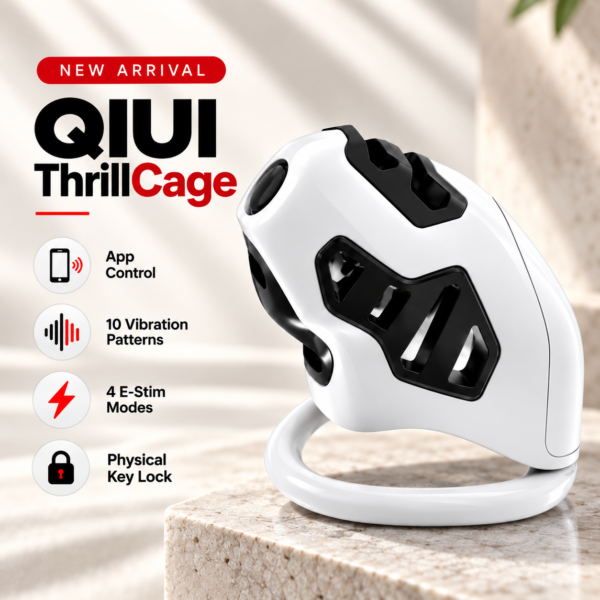
ThrillCage is an app-controlled comparison with a physical key. Check its current app behavior and retain the key; it is not a guaranteed screen-lock workaround. See the product details and confirm the selected option before ordering.
QIUI CAGINK Pro Cellmate 3 App-Controlled Smart Chastity Cage
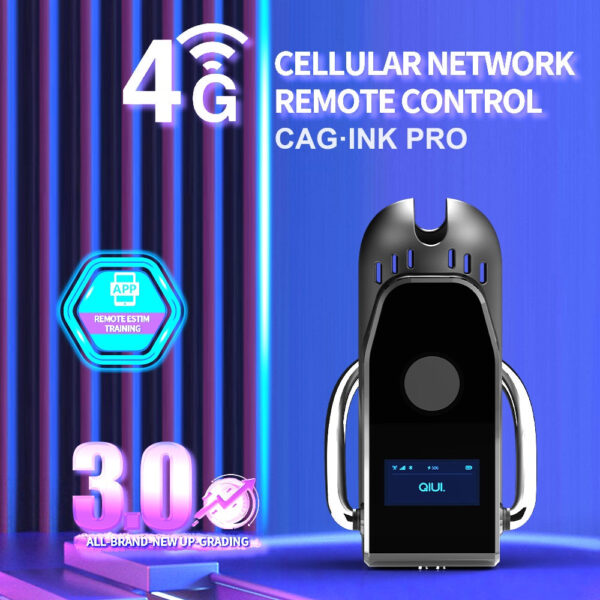
Cellmate 3 uses a different app-linked design. Compare its documented connection and recovery procedure rather than transferring a ThrillCage phone setting. See the product details and confirm the selected option before ordering.
Blue App and Remote Vibrating Chastity Cage with 10 Modes
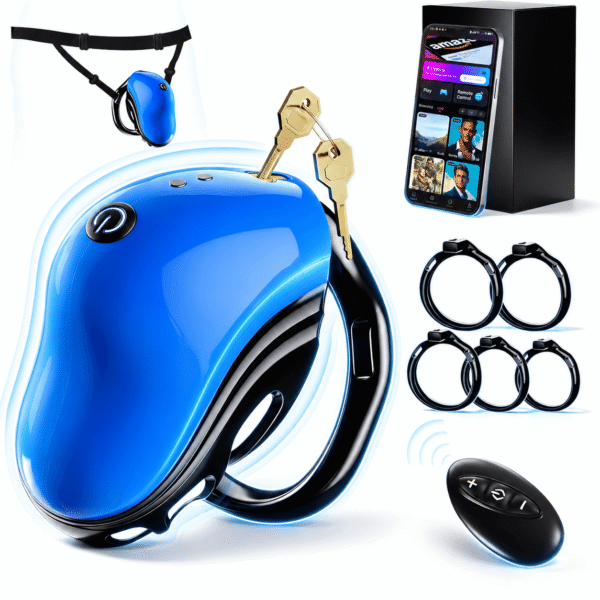
The Blue cage lists app and handheld remote operation. That dual-controller arrangement may fit a different routine, but it does not diagnose the original app failure. See the product details and confirm the selected option before ordering.
A repeatable, unworn test with one controlled change gives support a useful starting point. Preserve physical access independently of any background connection.