
A timer display, an opening record and the device’s own state are different sources of information. If they appear out of step, record what each screen shows before changing anything. Within our smart chastity range, offline timers and app histories are model-specific features, so a delayed display should not be used to predict or override the device’s release behavior.
Identify Whether the Screen Shows a Timer or a Record
A countdown, scheduled lock rule and past-opening record are different displays. Write down the exact screen label, the value before a connection gap and the value afterward. Check whether the app identifies the source as the device, a cloud account or a local history list. If it does not, ask support. A displayed time that fails to refresh is an observation; it is not evidence that the physical mechanism changed its schedule.
Do this with the device unworn. Do not alter an active timer, reset hardware or lock a worn device to test a display. The KeyPod offline-timer article explains one model’s offline claim; this article distinguishes display sources and records when synchronization appears delayed.
Check Where the Timer Is Documented to Run
Metal KeyPod’s listing describes an offline countdown. KeyPod’s listing mentions opening records. MetalShake lists an offline timer. Those statements are not interchangeable: an offline countdown may continue when a phone is absent, whereas a record is a history item and may reach the screen later. Confirm the exact model, firmware and selected mode in its current instructions before assuming how either value is maintained.
If a listing does not specify whether a countdown lives on the hardware or service, mark that detail unknown. Do not infer it from the word “smart.” Even when a maker documents offline operation, the display may have its own refresh process. Request the documented behavior for your model rather than importing a rule from another product.
Compare Displays Without Changing an Active Setting
Observe the same labeled display on the same account before and after a normal app reopen, following the manufacturer’s instructions. Note whether a nearby phone and a remote partner’s phone show different values. Keep the hardware unworn and use only passive observation. Do not use repeated lock commands, countdown edits or a factory reset as a synchronization test.
Capture the displayed label and time with private information hidden. A screenshot should not expose a user account, location, payment details or one-time code. If the two views disagree, tell support which device and phone showed each value. A mismatch can arise from several causes; calling it “just cache” would be an unverified diagnosis.
Record the Time and Connection State for Support
Include date, time zone, app and operating-system versions, hardware model, connection indicator and the exact error text. State whether the discrepancy affects a countdown, an opening record or both. Ask how the current firmware stores the timer and when history is expected to synchronize. Keep the order reference private and send it only through the site’s normal support channel if requested.
| Screen label | Shown value and time | Connection state | Second view |
|---|---|---|---|
| Countdown/history | Fill in with time zone | Nearby/remote/offline | Fill in |
| After reopen | Fill in with time zone | Fill in | Fill in |
Compare Offline Timing and App History Features
Metal KeyPod can be considered when an offline countdown is a documented need. KeyPod has opening-record information; that is not a second name for an offline lock timer. MetalShake lists an offline timer alongside app locking and vibration, but the exact release behavior still requires its manual. Compare the actual feature each listing states rather than grouping all three under “timer.”
No product card below promises that a stale phone display reflects a safe release time. Physical access remains a separate question. If the product documentation does not answer where the time is kept or how an error is handled, support must resolve it before anyone relies on the countdown.
QIUI Metal KeyPod App-Controlled Key Lock Box with Timer
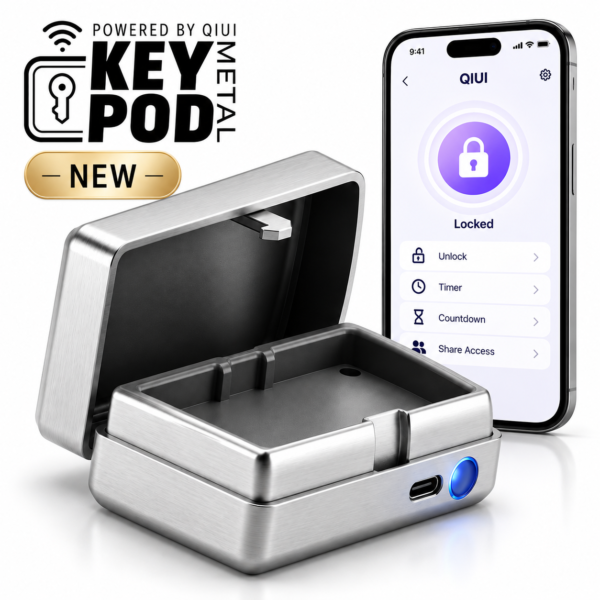
Metal KeyPod lists an offline countdown. Ask how the hardware and app display reconcile after a connection gap; never treat a stale screen as release evidence. See the product details and confirm the selected option before ordering.
QIUI KeyPod App-Controlled Timed Chastity Key Box

KeyPod lists opening records. History synchronization is a different question from timer execution and needs the exact model documentation. See the product details and confirm the selected option before ordering.
QIUI CAGINK MetalShake App-Controlled Metal Vibrating Chastity Cage

MetalShake lists an offline timer. Confirm the current instructions for that mode rather than assuming it matches either KeyPod product. See the product details and confirm the selected option before ordering.
Name the screen, source and observed time before contacting support. A delayed display is a question to investigate, not an instruction to change a live lock setting.