A useful support request names the exact model, failed function and checks already completed. Add the app and phone versions when relevant, then attach clear screenshots with private details hidden. For devices in our smart chastity collection, that information helps separate account, connection and hardware questions without repeating risky tests or guessing which component needs attention.
Describe the Failed Function in One Sentence
Begin with a narrow statement: “The app cannot find the unworn cage after the phone update,” “The dedicated remote does not operate the listed function,” or “The key-box status does not refresh.” These are three different support problems. Say what you expected and what actually happened without claiming a defective part before the source is known. Include the exact on-screen error if there is one, including its punctuation.
State whether the device is unworn and whether the supplied local access method remains available. Do not carry out a wear test to make a support ticket more dramatic. If normal access is not available, follow the maker’s current safety instructions and seek appropriate immediate help; an email diagnosis is not a substitute. The connection checklist can help identify which prior checks are relevant.
List the Model, Software and Control Method
Give the product name and exact variant from the order, any hardware revision or serial number requested through a private support channel, the phone model, operating-system version and app version. Say whether the failed command came from a phone app, handheld remote or wired host. An app-controlled E-Stim function, a remote-controlled vibration function and access to a timed key box do not share one diagnostic path.
Include the date and time zone of the failure, whether the phone was near the device and which network was in use if relevant. Do not include a full address or payment detail in the first message. Support can request an order number privately if needed to identify the selected configuration.
Attach Useful Evidence Without Personal Secrets
A clear photo of an unworn product, connector or model label can help identify parts. A screenshot of the exact app error can show wording and version. Cover or crop usernames, location, verification codes, private partner messages, payment information and unrelated notifications. Do not send body photos or images of a worn device to prove a control issue.
Label files with their purpose, such as “model-label,” “app-error” and “remote-indicator,” and explain what each shows. If a short video is genuinely requested by support, film only the unworn device and the documented normal action. Avoid recording a long sequence of repeated electrical tests. Keep original files until the ticket is resolved so you can answer a follow-up accurately.
Summarize the Checks Already Completed
Write a short chronology: baseline behavior, one change, result and whether you restored the original setting. For app issues, note Bluetooth/Nearby permission, account sign-in and app update only if actually checked. For a remote, record the exact model, its documented battery or charge state and whether the remote indicator appeared. For a key box, describe the displayed timer or access status without assuming it is synchronized.
| Check | Result | Date and conditions |
|---|---|---|
| Official setup step | Fill in | Fill in |
| One documented retry | Fill in | Fill in |
| Physical access | Available/not checked | Fill in |
Do not claim a reset, battery change or software reinstall if it was not performed. The goal is a reproducible account, not a long list of generic troubleshooting verbs.
Use a Short Support Request Template
Copy this message and replace brackets with your own facts: “Hello, I need help with [exact model and selected version]. My private order reference is [send through the approved support channel if requested]. I use [phone/OS] with app version [version], or the supplied [remote/host]. The failed function is [one sentence]. The original error says [exact text]. It happens when [specific, unworn conditions] and began on [date/time zone]. I have checked [only steps actually completed], with results [brief results]. Physical access is [available/needs urgent guidance]. Please confirm [one or two model-specific questions] and the next manufacturer-approved check.”
ThrillCage, War Dragon and Metal KeyPod illustrate why naming the controller matters. Their support questions concern different functions. Product pages help identify the model and supplied parts; they do not establish a refund, replacement or response-time promise. Use the site’s contact page for the current support route.
QIUI ThrillCage App-Controlled E-Stim Chastity Cage
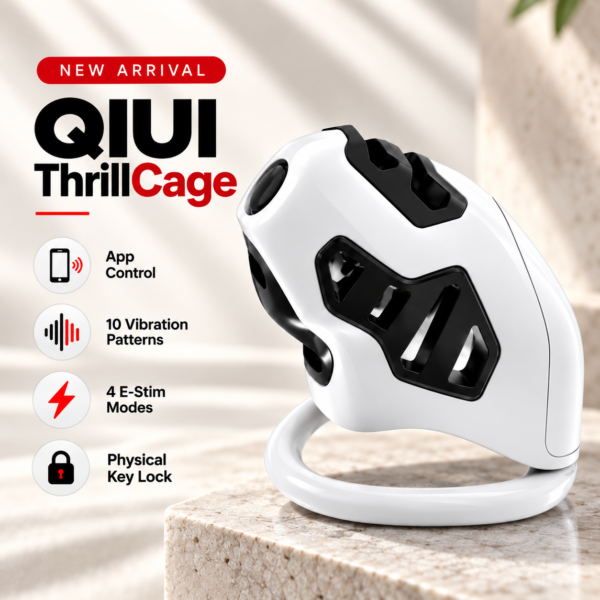
ThrillCage has app-managed E-Stim and vibration functions with a physical key. Name the exact failed function and retain the key. See the product details and confirm the selected option before ordering.
War Dragon Remote-Controlled Vibrating Chastity Cage Set
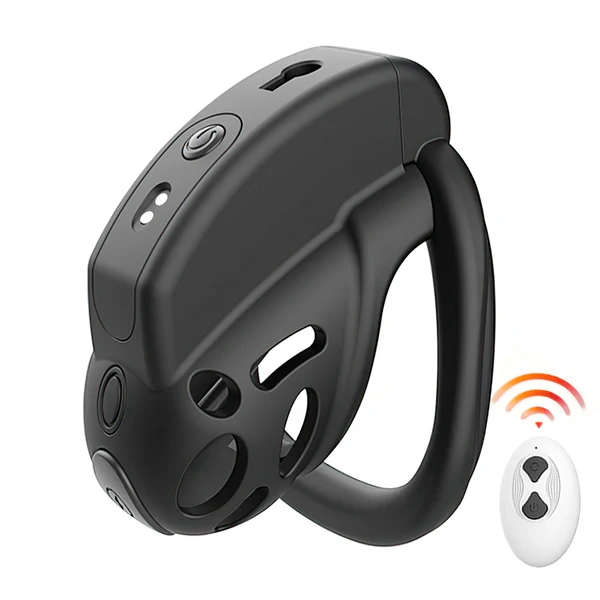
War Dragon is a remote-vibration package with selectable cage and ring sets. Include the chosen version and remote symptom, not an app assumption. See the product details and confirm the selected option before ordering.
QIUI Metal KeyPod App-Controlled Key Lock Box with Timer
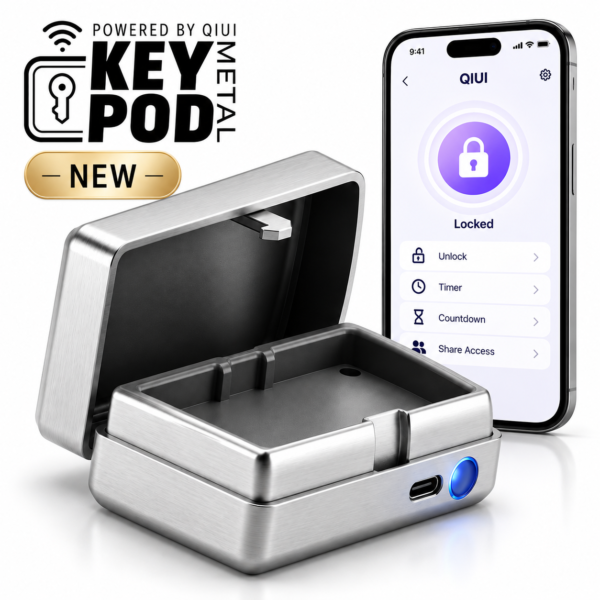
Metal KeyPod is a timed key box. Report its access or display problem separately from an electronic cage fault. See the product details and confirm the selected option before ordering.
A concise, redacted ticket with exact model and reproducible conditions gives support a better starting point than repeated speculative tests.