
One app may support several models without allowing every device to work together or share the same permissions. Check model support, device switching and simultaneous control separately. When comparing app-controlled chastity devices, label each device clearly and confirm what the app can actually manage before building a setup around two or more connected products.
Check Which Models the App Actually Supports
Begin with the manufacturer’s supported-model list for the current app version. “Works with QIUI” or “uses LOCKINK” is too broad when product generations and functions differ. A device appearing in a catalog does not establish that every app release, country or phone supports it. Check each model number and record which phone platform and app version you tested.
The smart-cage selection guide covers overall function and fit. For a multiple-device plan, the first question is whether the exact two models can each be added to the intended app account. ThrillCage lists app E-Stim and vibration, but its key-operated lock should not be treated as an app-controlled function just because the cage can be paired.
QIUI ThrillCage App-Controlled E-Stim Chastity Cage
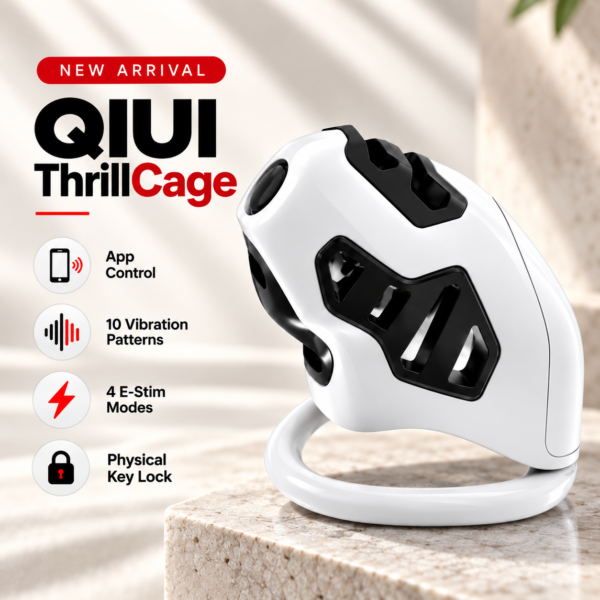
ThrillCage is an app-managed electronic-function example, with a physical key for release. Check whether this exact generation can be registered alongside another QIUI unit; a brand name does not prove multi-unit control. See the product details and confirm the selected option before ordering.
Adding Devices Is Different from Controlling Them Together
Four different abilities are often compressed into “multi-device support”: an app recognizes several model families, one account can register several physical units, a user can switch between their screens, and the app can operate two units at the same time. Evidence for one ability does not prove the next. Ask the developer or consult the current manual for concurrent control limits, if that feature matters.
Test off the body with both units available. Add one, record its visible name, then add the second if the instructions permit it. Confirm whether both remain registered after closing and reopening the app. This basic check is still not proof that a single button will control both or that settings are shared.
Identify Each Device Before Sending a Command
Name devices by model and a private distinguishing label, not just “cage.” Before changing a timer, vibration or stimulation setting, confirm which hardware is selected on screen and which physical unit responds. If the app has no clear device selector, do not test two devices by guessing. Keep serial numbers in a private record if supplied; do not post them publicly or send account credentials to a partner as a workaround.
A good off-body test has one user, two powered devices and a written list of actions for each. Pair, select, perform one safe listed action, stop it and repeat on the other unit. Record whether switching is manual and whether commands ever affect the unexpected device.
Check Partner Permissions for Each Device
Sharing one device does not automatically share another. Check whether partner invitations attach to an account, a named device, a particular control function or a timed access period. Metal KeyPod lists two-person binding for key storage, but its current interface must establish exactly how invitation, removal and scope work. A box that releases a physical key remains distinct from direct electronic cage control.
Ask who can see each device, change settings and recover access if a phone changes. Confirm a local early-release arrangement independently for every mechanical lock. Do not use a shared master password to mimic a device invitation; it erases the role separation you need to understand.
QIUI Metal KeyPod App-Controlled Key Lock Box with Timer
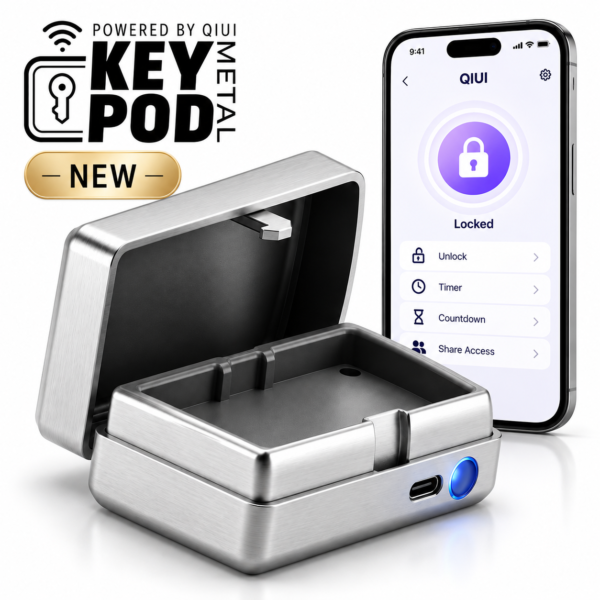
Metal KeyPod adds a second kind of device: an app-controlled box for a physical key. Verify two-person binding and the actual account/device permissions without assuming it unlocks any cage electronically. See the product details and confirm the selected option before ordering.
Compare a Cage, a Key Box and a Smart Locking Model
Use a function map instead of a single “app supports it” column.
| Example | Listed app role | Separate question |
|---|---|---|
| ThrillCage | E-Stim and vibration | Physical key for cage release |
| Metal KeyPod | Key-box access and timer | Will the actual key fit and who can open box? |
| MetalShake | App locking and vibration | Exact pairing, release and account permissions |
These are three different device functions, not proof that one app controls all three at once. Even two QIUI products should be checked as separate models, and a LOCKINK device may belong to an entirely different app ecosystem.
QIUI CAGINK MetalShake App-Controlled Metal Vibrating Chastity Cage

MetalShake lists app locking and vibration in a compact aluminum-alloy model. It requires its own pairing and release checks; sharing an app category with other cages does not prove one-account compatibility. See the product details and confirm the selected option before ordering.
If a two-device feature is central to your setup, get current documentation or run an off-body test for those exact units. Keep support, switching, simultaneous operation and partner permissions as four separate findings.