A private device can still appear in a lock-screen preview or while you share your phone screen. Review notification previews and screen-sharing habits before using a connected app. If you are comparing the app-controlled product range, also consider whether you want phone-based control at all; the right privacy settings depend on your phone and the current app version.
Identify where notifications can appear
An app alert can show on the phone’s lock screen, notification shade, connected watch, tablet or shared computer, depending on the user’s own device settings. Make a list of devices signed into the same account and identify who can see their screens. A notification may reveal an app name even when its message text is hidden. Do not assume a chastity app has a secret mode unless its current documentation explicitly describes one.
The permissions guide explains Bluetooth, location and notification access. This article concerns visibility on a screen the user controls, not a promise about what an app stores on its servers.
Review lock-screen previews on your phone
Apple’s current iPhone help describes per-app notification previews under Settings and Notifications, with options such as Always, When Unlocked and Never when supported. Android’s help describes lock-screen notification controls, including hiding sensitive content or showing none; exact menus vary by phone and version. Choose the narrowest setting that meets your own notification needs, then test it with a harmless notification from your own device.
Changing a preview setting may hide message details while still leaving an app icon or name visible. It also does not guarantee that a paired watch or another signed-in device uses the same setting. Check each device separately and remember that a later operating-system update may move a control.
QIUI ThrillCage App-Controlled E-Stim Chastity Cage
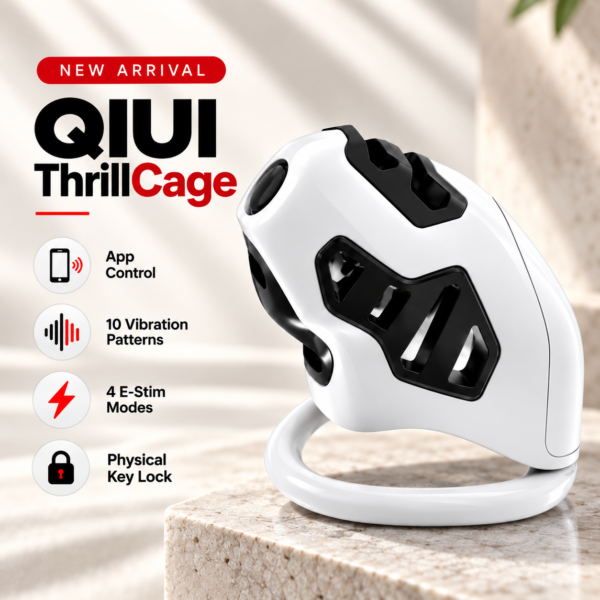
ThrillCage uses an app for electronic functions. Review your own phone notifications, but do not assume the app offers an undocumented hidden mode. See the product details and confirm the selected option before ordering.
Check screen sharing and shared-device use
Before presenting or screen sharing, check whether notifications are allowed over that route. Apple’s current iPhone help notes that screen-sharing notification visibility is configurable. On a shared computer or tablet, verify which account is signed in and whether mirrored phone alerts appear. Close personal sessions or use the system’s normal privacy options on a device you own; do not try to bypass another person’s monitoring or a workplace policy.
For a phone handed to someone else temporarily, consider whether the app itself is visible in recent apps or search. Hiding notification previews does not remove the app, its account or device records. Decide what level of privacy is actually possible on that device rather than promising anonymity.
QIUI Metal KeyPod App-Controlled Key Lock Box with Timer
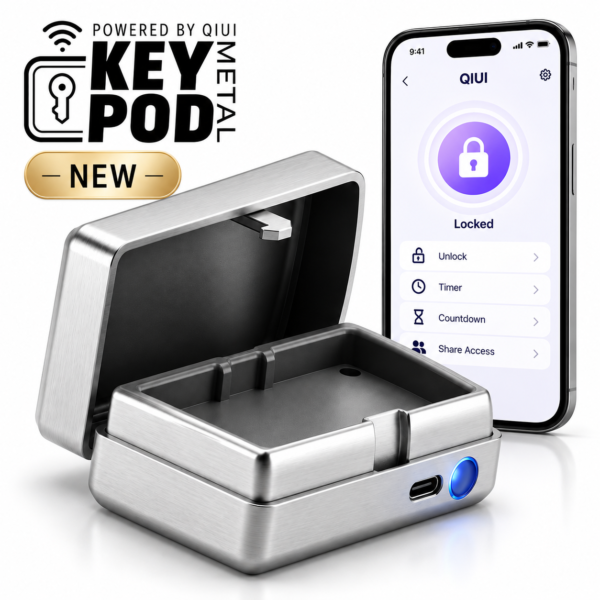
Metal KeyPod has app-linked key storage and timer functions. Phone preview controls can limit screen visibility, not certify data minimization. See the product details and confirm the selected option before ordering.
Separate notification privacy from app data practices
Operating-system notification settings control what appears on your screen. They do not establish that the app collects no data, never sends a partner a status update or stores no history. Read the current app privacy notice and the exact model’s sharing documentation for those questions. Bluetooth/Nearby permission, location permission, partner visibility and notification previews are separate controls.
If the maker’s description is incomplete, ask support what information is visible to an invited partner and how to revoke sharing. Keep screenshots of these settings private and redact account identifiers before sending them. Do not describe an unverified “stealth mode” as a product feature.
Compare phone-based and dedicated-remote routines
ThrillCage and Metal KeyPod have app-linked controls, so a phone’s notification handling may matter to their owners. War Dragon uses a dedicated handheld remote for its listed vibration function and may involve fewer phone notifications for that function, but it has different range, battery and access questions. A remote is not an all-purpose privacy guarantee; it is a different controller arrangement.
| Screen or device | Can reveal | User check |
|---|---|---|
| Phone lock screen | App name/content | Preview setting |
| Watch or tablet | Mirrored alert | Device setting |
| Screen share | Live alert | Sharing controls |
| Remote controller | Physical device presence | Storage and access |
War Dragon Remote-Controlled Vibrating Chastity Cage Set
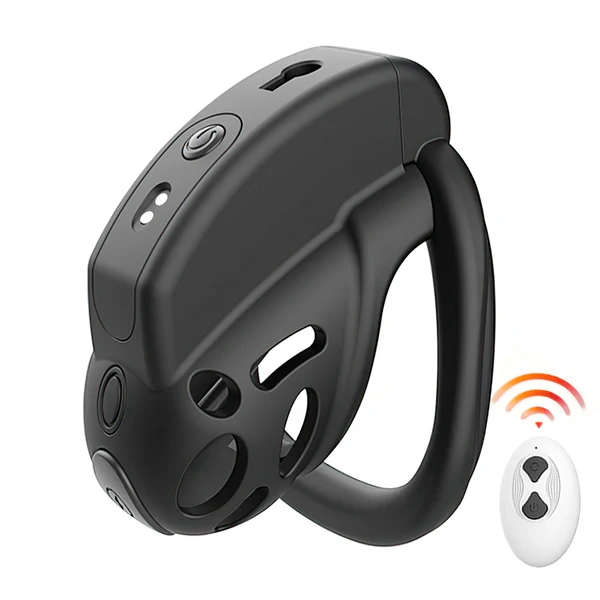
War Dragon’s dedicated vibration remote offers a different routine with its own physical and access considerations; it is not an anonymity promise. See the product details and confirm the selected option before ordering.
Manage previews on every device you own that can show alerts, then separately review the app’s actual data and partner-sharing behavior.